Mastering For Loops in Bash
Mastering For Loops in Bash
For loops are one of the most powerful constructs in Bash scripting, allowing you to automate repetitive tasks and process multiple files with ease. In this comprehensive guide, we’ll explore various ways to use for loops effectively.
Basic For Loop Syntax
The most basic for loop in Bash follows this pattern:
for variable in list
do
    command1
    command2
    ...
done
Example: Simple Iteration
#!/bin/bash
for fruit in apple banana cherry
do
    echo "I like $fruit"
done
Output:
I like apple
I like banana
I like cherry
Looping Through Files
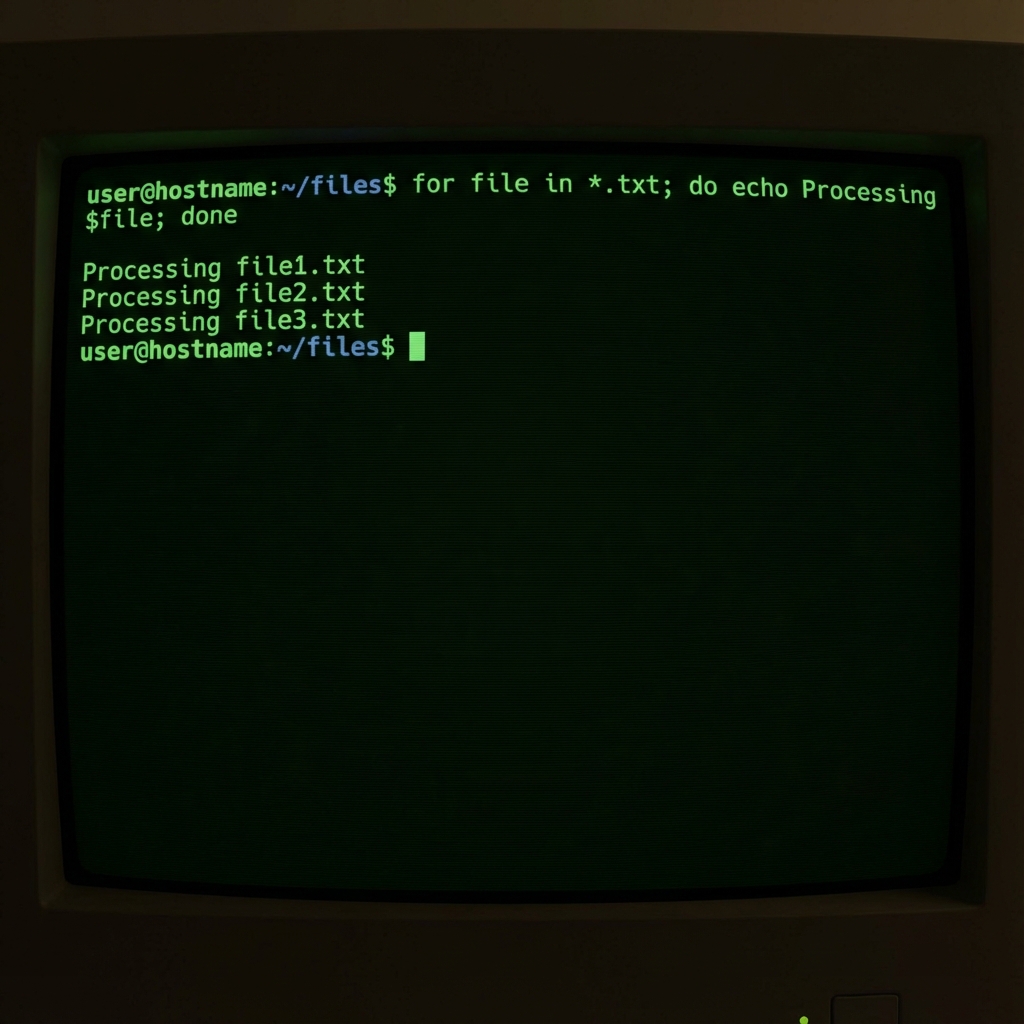
One of the most common use cases is processing all files in a directory. Here’s how to iterate through all .txt files:
#!/bin/bash
for file in *.txt
do
    echo "Processing: $file"
    # Add your file processing commands here
    wc -l "$file"
done
Important: Handling Spaces in Filenames
Always quote your variables when dealing with filenames that might contain spaces:
for file in *.pdf
do
    # GOOD - handles spaces correctly
    mv "$file" "backup/$file"

    # BAD - will break on spaces
    # mv $file backup/$file
done
C-Style For Loops
Bash also supports C-style for loops for numeric iterations:
#!/bin/bash
for ((i=1; i<=5; i++))
do
    echo "Iteration $i"
done
Output:
Iteration 1
Iteration 2
Iteration 3
Iteration 4
Iteration 5
Using Ranges with Brace Expansion
Generate sequences easily with brace expansion:
# Numbers
for i in {1..10}
do
    echo "Number: $i"
done

# Letters
for letter in {a..z}
do
    echo "Letter: $letter"
done

# With step
for num in {0..100..10}
do
    echo "Count: $num"
done
Practical Examples
1. Batch Rename Files
#!/bin/bash
# Add prefix to all .jpg files
for file in *.jpg
do
    mv "$file" "photo_$file"
done
2. Create Multiple Directories
#!/bin/bash
# Create project directories
for dir in src tests docs config
do
    mkdir -p "project/$dir"
    echo "Created: project/$dir"
done
3. Process Log Files
#!/bin/bash
# Extract errors from multiple log files
for logfile in /var/log/*.log
do
    echo "Checking $logfile..."
    grep -i "error" "$logfile" > "errors_$(basename $logfile)"
done
4. Backup Multiple Databases
#!/bin/bash
# Backup multiple databases
for db in users products orders analytics
do
    echo "Backing up database: $db"
    mysqldump -u root -p "$db" > "backup_${db}_$(date +%Y%m%d).sql"
done
Nested For Loops
You can nest for loops for more complex operations:
#!/bin/bash
# Create a multiplication table
for i in {1..5}
do
    for j in {1..5}
    do
        result=$((i * j))
        echo -n "$result "
    done
    echo ""  # New line after each row
done
Reading from Command Output
Use command substitution to loop through command results:
#!/bin/bash
# Loop through all users
for user in $(cat /etc/passwd | cut -d: -f1)
do
    echo "User: $user"
done

# Better approach using while read
while IFS=: read -r username rest
do
    echo "User: $username"
done < /etc/passwd
Loop Control: Break and Continue
Break - Exit the loop
for i in {1..10}
do
    if [ $i -eq 5 ]; then
        echo "Breaking at $i"
        break
    fi
    echo "Number: $i"
done
Continue - Skip to next iteration
for i in {1..10}
do
    if [ $i -eq 5 ]; then
        echo "Skipping $i"
        continue
    fi
    echo "Number: $i"
done
Common Pitfalls and Best Practices
❌ Don’t: Parse ls output
# BAD - breaks on spaces and special characters
for file in $(ls *.txt)
do
    echo "$file"
done
✅ Do: Use glob patterns
# GOOD - handles all filenames correctly
for file in *.txt
do
    echo "$file"
done
✅ Always quote variables
for file in *.mp3
do
    # GOOD
    cp "$file" "/backup/$file"

    # BAD
    # cp $file /backup/$file
done
Performance Tips
- Avoid unnecessary subshells: Use built-in commands when possible
- Use arrays for complex data: Store results in arrays for reuse
- Limit loop iterations: Use
breakto exit early when condition is met
# Efficient: stops when found
for file in *.log
do
    if grep -q "ERROR" "$file"; then
        echo "Found errors in $file"
        break
    fi
done
Download Sample Scripts
I’ve prepared a collection of ready-to-use for loop scripts for you to practice with:
📦 Download Sample Scripts (ZIP)
The ZIP file includes:
basic_loop.sh- Simple iteration examplesfile_processor.sh- File processing templatesbatch_rename.sh- Batch file renaming scriptbackup_script.sh- Automated backup examplesREADME.md- Usage instructions
Video Tutorial
Summary
For loops are essential for:
- ✅ Processing multiple files in batch
- ✅ Automating repetitive tasks
- ✅ Generating sequences and ranges
- ✅ Building complex automation scripts
Master these patterns and you’ll dramatically improve your Bash scripting efficiency!
Related Articles
Download Exercise Files
Get the source code, datasets, and cheat sheet for this lesson.
Download Resources